

Turn on two-factor authentication
Two-factor authentication means signing in needs your password and a six-digit code from your phone, so a stolen password is not enough on its own.- Press Enable 2FA. Taberna shows a QR code.
- Scan it with an authenticator app — Google Authenticator, Authy, 1Password, whichever you use. If you cannot scan, the setup code is printed underneath to type in by hand.
- Enter the six-digit code the app shows, and press Verify.
- Taberna shows your backup codes. Save them somewhere safe now.
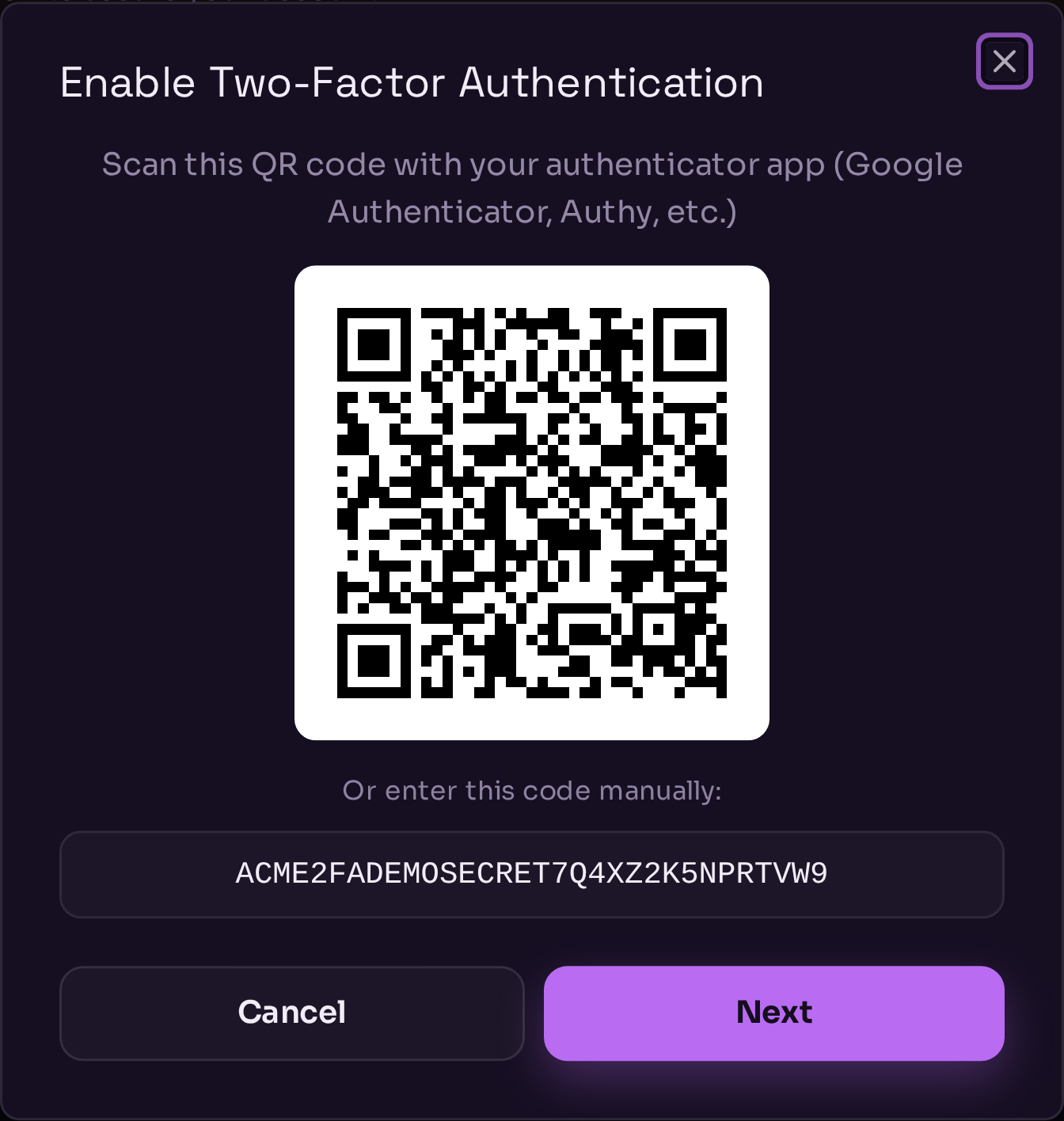
Scanning the setup code during two-factor setup.
The backup codes are shown once and cannot be retrieved afterwards. They are how
you get in if you lose your phone. Copy them into a password manager before pressing
Done.
Check what is signed in
The Active Sessions card lists every device signed in to your account, with its browser, operating system and when it was last used. Your current device is marked Active. Press Revoke on anything you do not recognise; it signs that device out immediately and without asking twice. You cannot revoke the session you are using — sign out normally for that.Change your password
If you sign in with a password, the Password card sits under Account → Security. Accounts that sign in with a crypto wallet have no password, so the card is not shown for them.- Press Change password.
- Enter your current password.
- Enter a new password — at least 12 characters — and confirm it.
Changing your password signs out every other device. The one you are changing it
on stays signed in.
Change your email
Your email lives under Account → Profile, in the Email card. It shows your current address and whether it is Verified.- Press Change email.
- Enter the new address. If your account has a password, you also enter your current password to confirm; wallet accounts are not asked for one.
Reset a forgotten password
If you cannot sign in, start from the sign-in page rather than the dashboard.- On the sign-in page, press Forgot password?.
- Enter your email and submit.