

yourname.taberna.io by default. If you own a domain, you can put it
there instead. You need to have claimed a storefront address first,
and to be an owner or admin — see Team.
How it works
- Enter your domain in Settings → Storefront, under Custom Domain.
- Add the two DNS records Taberna shows you, at whoever you bought the domain from.
- Wait a few minutes for the status to turn Active.
Add the domain
Enter a domain you control —shop.yourbrand.com or yourbrand.com both work. One
domain per store. To change it, disconnect the current one first.
Add the DNS records
Taberna shows you exactly what to create. Log in wherever your domain is registered and add both:
The TXT record proves you own the domain, and its name and value are unique to you — copy
them from the dashboard rather than from anywhere else.
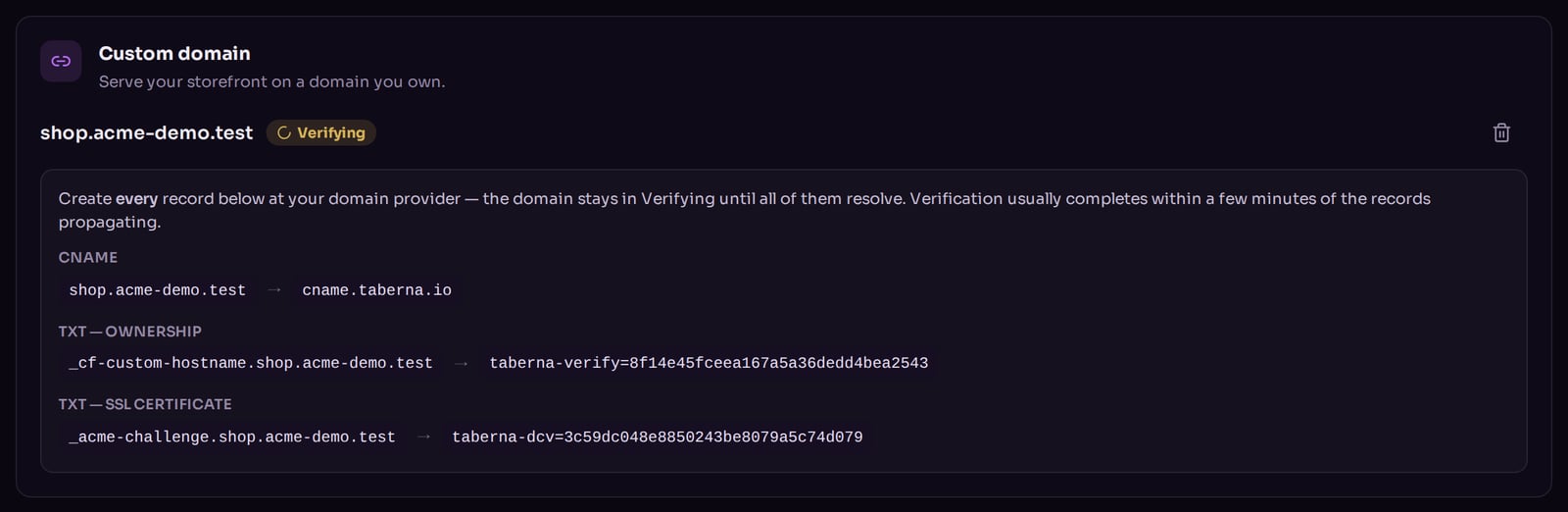
The DNS records to create, shown while a domain is being verified.
Watch the status
The dashboard checks every few seconds and shows one of three states:- Verifying — the records are not visible yet. DNS changes usually take a few minutes, occasionally an hour or two.
- Active — done. Your shop is live on your domain, with a certificate issued automatically.
- Failed — something is wrong with the domain or its certificate. Check the records match exactly, then disconnect and add it again.
If verification stalls at Verifying for hours with the records in place, email
support@taberna.io with the domain — some providers need
an extra certificate record that the dashboard does not yet display.
Once it is active
Your custom domain becomes the real address of your shop. Visitors who go toyourname.taberna.io are redirected to it automatically, so old links keep working, and
new order links are built on your domain.
Disconnecting the domain sends visitors to it away, and your taberna.io address takes
over again.