

How it works
- Claim a web address — usually your store’s name. Your shop goes live at
yourname.taberna.io. - Choose your colours, fonts and page sections, watching the live preview as you go.
- Press Publish.
Claim your address
In the Store URL field, type the name you want and press Claim. It must be 3 to 30 characters — lowercase letters, numbers and hyphens, and it cannot start or end with a hyphen. Availability is checked as you type, and around two hundred names such asshop, admin, support and api are reserved.
Claiming an address also switches your storefront on.

Claiming a storefront address.
You can change your address later, as often as you like — but changing it breaks
every existing link to your shop. The old address stops working immediately.
Design your shop
The theme editor has five settings, and a live preview beside it that updates as you type.
If your accent is too close to your background to read, the editor warns you. It will
still let you publish it.
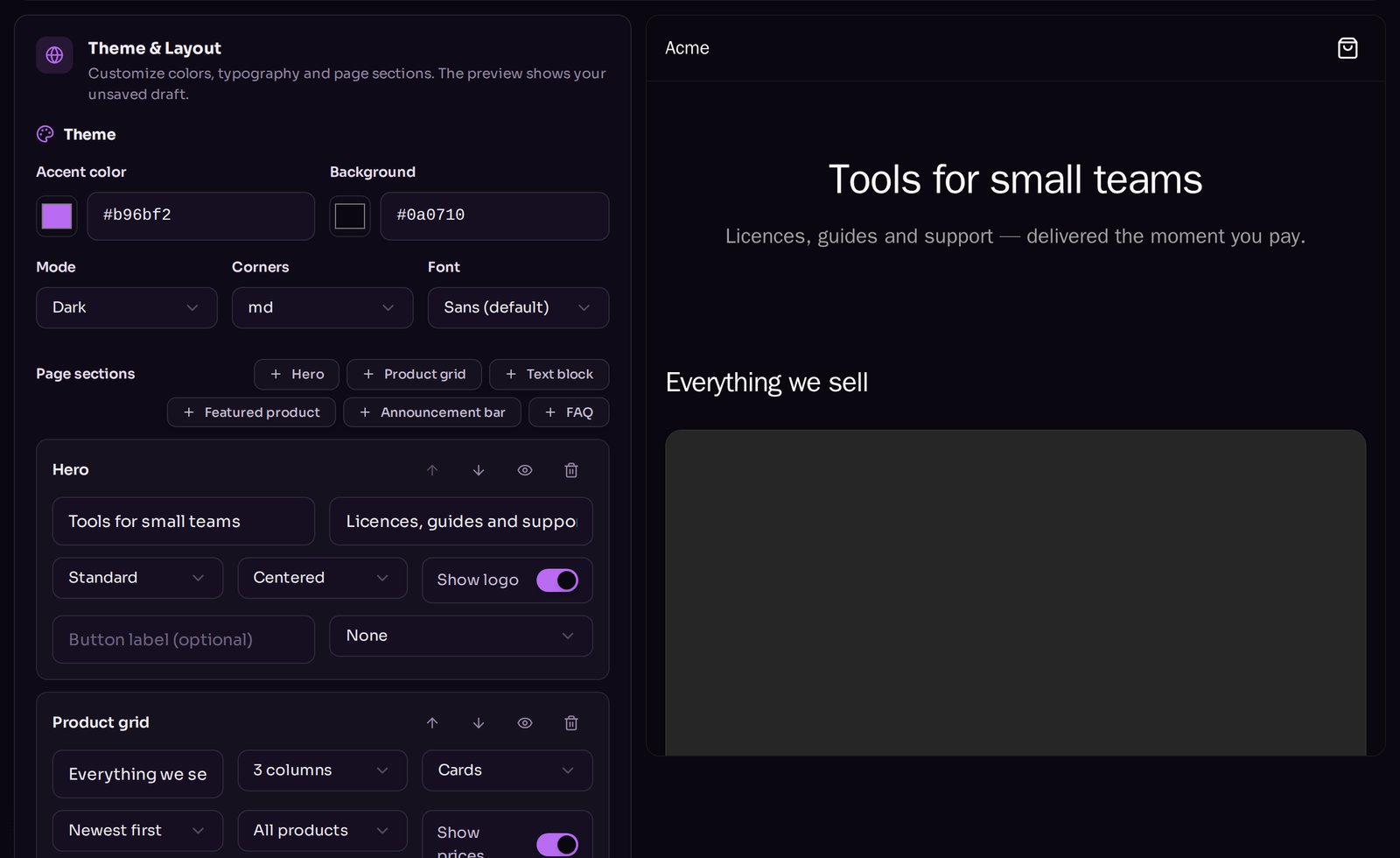
The theme editor with the live preview alongside.
Build the page
Your home page is made of sections, stacked in the order you choose, up to ten.
Reorder sections with the up and down arrows on each one. The eye icon hides a
section without deleting it; the bin removes it.
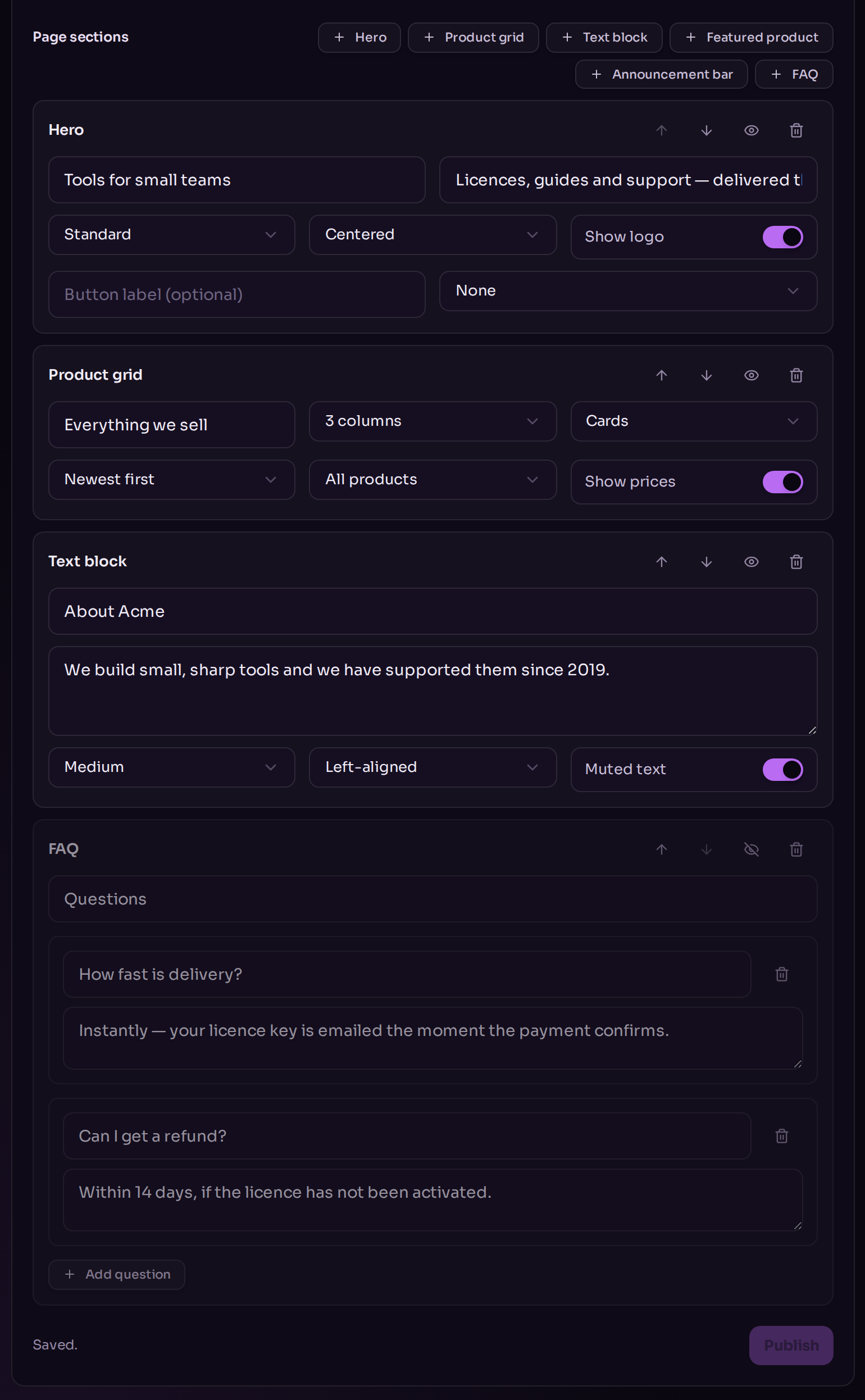
The section list, with move, hide and remove controls on each row.
Only your listed products appear on the storefront, newest first, up to 100.
See Products.
Branding and footer
Two images:- Logo — shown in the header and hero. Falls back to your store image if unset.
- Favicon — the little icon in the browser tab. Square, at least 64×64.
Keep it private while you build
Password protection puts a gate in front of the whole shop: visitors see your logo and store name, and have to type the password to get any further. Use it to build before launch, or to run an invite-only shop. Changing or removing the password immediately locks out everyone who had already got in.The password must be at least 8 characters. The field says 4, but shorter
passwords are rejected when you save.
One more setting
Require customer email is on by default: buyers give an email address before paying, which is how you reach them about their order. Turn it off for anonymous checkout.What to read next
Custom domain
Run the shop on a domain you own.
Products
What appears in your product grid.