

How it works
- Open an account and create a store.
- Add a payout address so you have somewhere to be paid, and pick a product to sell.
- Turn on your storefront and share the link.
1. Create your account
Go to dash.taberna.io and choose Create account. You can sign up with an email address and a password, or by connecting a Solana wallet — either way you give an email address, because Taberna sends the verification link there. Click the link in that email before you carry on. You cannot sign in until you do.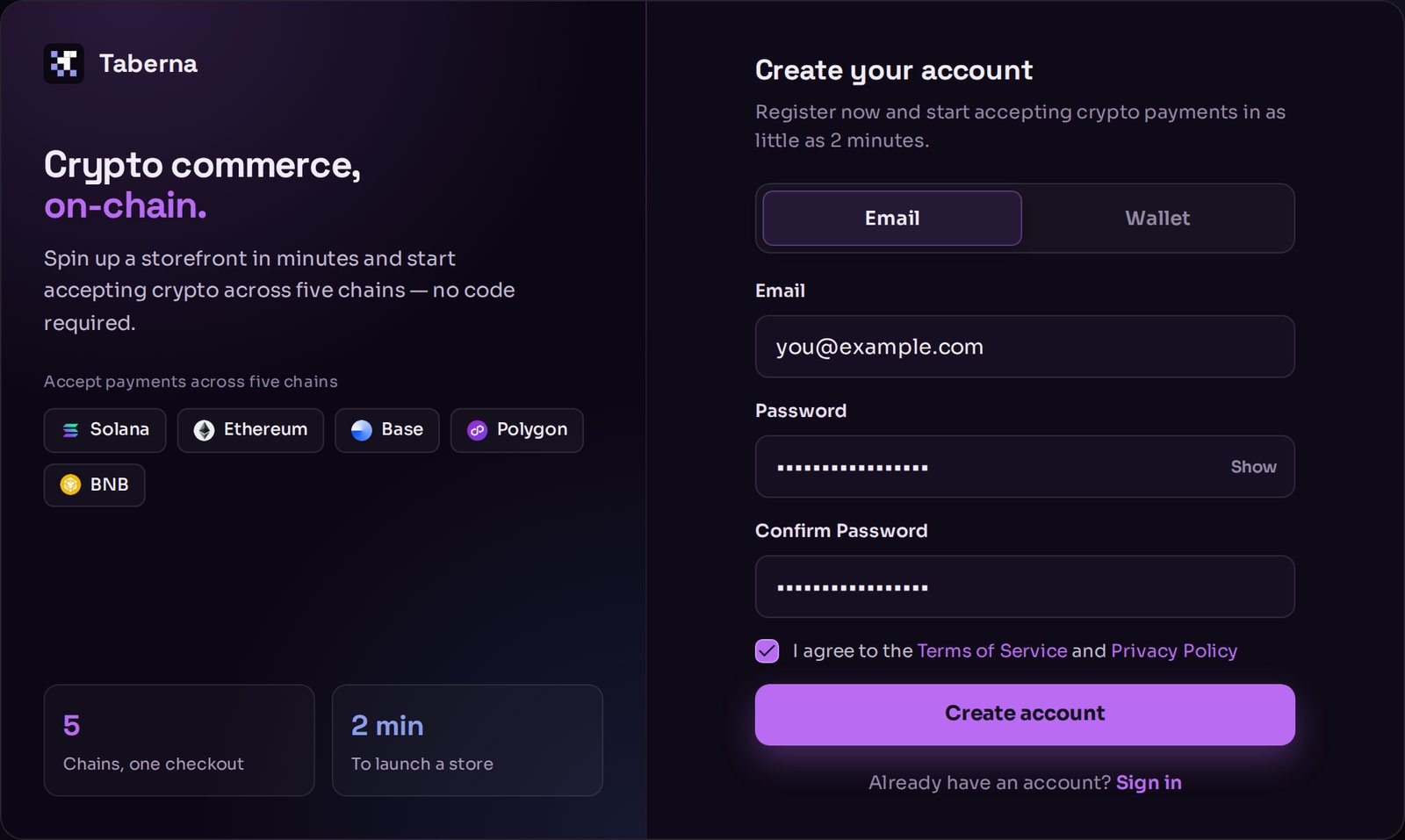
The signup screen, with the email and wallet options.
2. Name your store
The first time you sign in, Taberna walks you through three short steps. The first one asks for a store name (up to 50 characters) and, optionally, a logo. Both appear on the page your customers pay on. The other two steps can be skipped and done later. See Create your store.3. Add a payout address
This is where your money goes, so it is the one step worth not skipping. Pick a network — Base and Polygon are the cheapest for your customers — and paste a receiving address from your own wallet. Taberna checks the address is well-formed for that network before saving it, and switches on every coin available on it.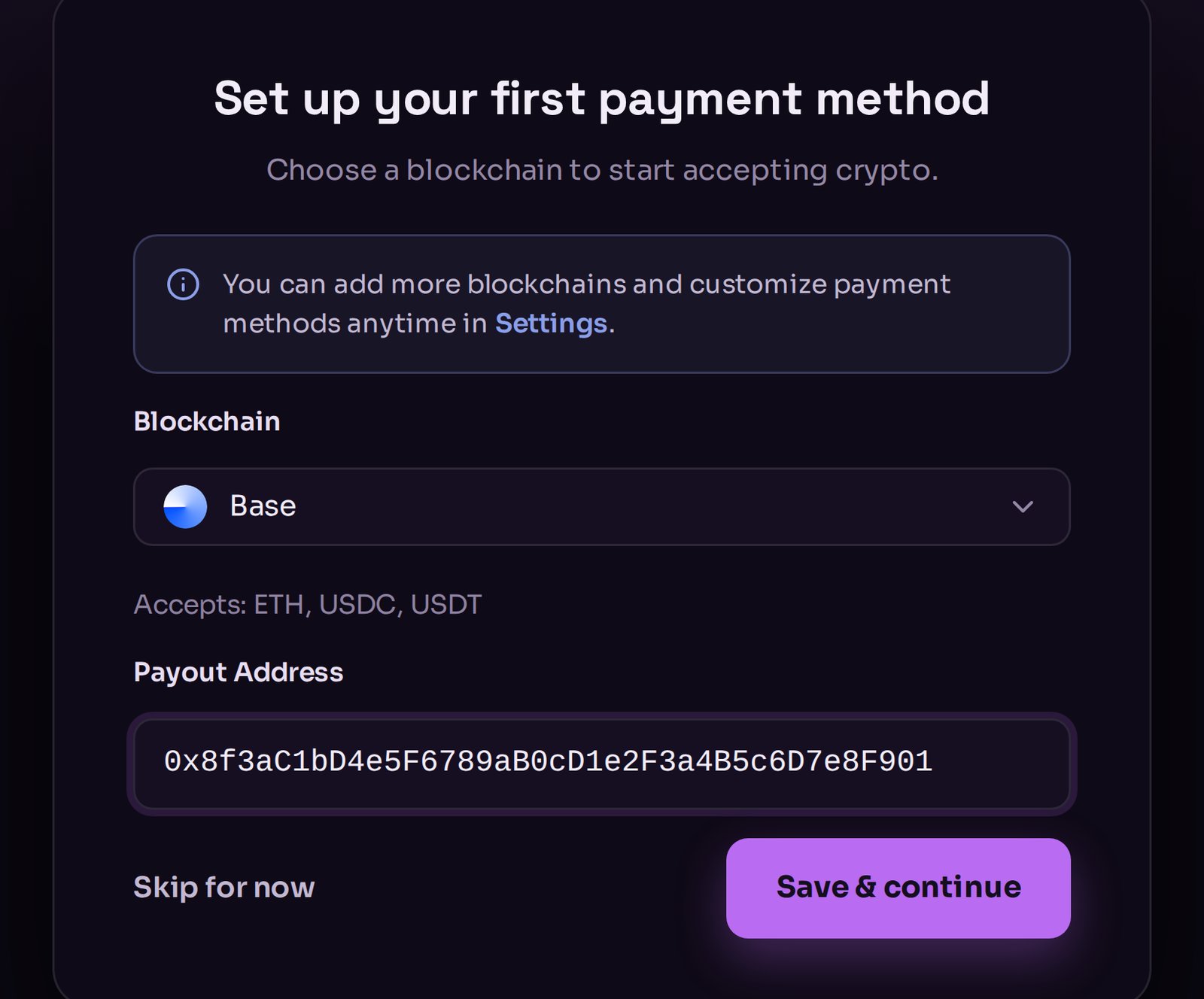
Choosing a network and pasting the wallet address that will receive your sales.
Not sure what a wallet address is? Crypto basics covers it
in a paragraph.
4. Create a product
Give it a title, a price and a currency (USD or EUR), add a picture, and tick Listed so customers can buy it. See Products. If you are selling something that gets handed over automatically — licence keys, a file, a link — open the product again after saving and set up digital delivery.5. Turn on your storefront
Go to Settings → Storefront and claim a web address — your store’s name is the obvious choice. Claimyourname and your shop is live at yourname.taberna.io.
From the same screen you choose your colours and fonts, add sections to the page, and
upload a logo. See Storefront.

Claiming a storefront address.
6. Share the link
That is the whole thing. Postyourname.taberna.io wherever your customers are. They browse,
add to cart, pay in crypto, and their purchase is delivered on the spot.
Every sale shows up under Orders in your dashboard, and the money reaches your wallet
usually within a minute.
What to read next
Storefront
Make the shop yours.
Digital delivery
Hand over goods automatically.
Fees
What a sale costs you.